
Prerequisites
Section titled “Prerequisites”- A domain or subdomain dedicated to FOSSBilling.
- A server that meets the system requirements.
- A web server running a FOSSBilling-compatible configuration.
Web Server Configuration
Section titled “Web Server Configuration”Apache usually requires no extra application-specific configuration. The templates below for other web servers should be treated as starting points and adjusted for your own paths, SSL settings, and deployment conventions.
FOSSBilling includes a ready-to-use .htaccess file for Apache, LiteSpeed, and OpenLiteSpeed. Set up your domain as you normally would, then proceed with installation.
OpenLiteSpeed users: After installation, remember to reload the web server so it picks up the new .htaccess file.
Use the configuration below as a starting point for running FOSSBilling on NGINX. Be sure to replace placeholder values (like %%DOMAIN%% and %%SOURCE_PATH%%) and adjust SSL paths to match your environment.
server {  listen 80;  server_name %%DOMAIN%%;  return 301 https://$host$request_uri;}
server {  listen 443 ssl http2;  ssl_certificate      /path/to/ssl/certificate.crt;  ssl_certificate_key  /path/to/ssl/certificate.key;  ssl_stapling on;  ssl_stapling_verify on;
  set $root_path %%SOURCE_PATH%%;  server_name %%DOMAIN%%;
  index index.php;  root $root_path;  try_files $uri $uri/ @rewrite;  sendfile off;  include /etc/nginx/mime.types;
  # Block access to sensitive files  location ~* .(ini|sh|inc|bak|twig|sql)$ {    return 403;  }
  # Block /vendor completely  location ^~ /vendor/ {    return 403;  }
  # Block direct access to config.php  location = /config.php {    return 403;  }
  # Block access to hidden files except .well-known  location ~ /\.(?!well-known\/) {    return 403;  }
  # Disable PHP execution in /uploads  location ~* /uploads/.*\.php$ {    return 403;  }
  # Deny access to /data, except /assets/gateways  location ~* /data/(?!(assets/gateways/)) {    return 403;  }
  location @rewrite {    rewrite ^/page/(.*)$ /index.php?_url=/custompages/$1;    rewrite ^/(.*)$ /index.php?_url=/$1;  }
  location ~ \.php$ {    fastcgi_split_path_info ^(.+\.php)(/.+)$;
    # fastcgi_pass need to be changed according your server setup:    # phpx.x is your server setup    # examples: /var/run/phpx.x-fpm.sock, /var/run/php/phpx.x-fpm.sock or /run/php/phpx.x-fpm.sock are all valid options    # Or even localhost:port (Default 9000 will work fine)    # Please check your server setup
    fastcgi_pass unix:/run/php/phpx.x-fpm.sock;      fastcgi_param PATH_INFO       $fastcgi_path_info;      fastcgi_param SCRIPT_FILENAME $document_root$fastcgi_script_name;      fastcgi_intercept_errors on;      include fastcgi_params;    }
    location ~* ^/(css|img|js|flv|swf|download)/(.+)$ {      root $root_path;      expires off;    }}
Pre-installation Steps
Section titled “Pre-installation Steps”- Download FOSSBilling: Download the latest stable release from our downloads page. Preview builds are for testing, not production.
- Prepare your database: Create a new MySQL database and a dedicated user for this installation. Keep the credentials handy for the installer.
- Set up SSL: If you plan to use HTTPS, and you should, configure and verify your certificate before you start the installer. That avoids redirect and mixed-URL issues later.
- Configure reverse-proxy headers: If you run behind a reverse proxy, forward the
X-Forwarded-HostandX-Forwarded-Protoheaders so FOSSBilling can generate the correct URLs and enforce HTTPS properly.
Installation Steps
Section titled “Installation Steps”Clean your document root: Remove placeholder files created by your control panel, such as default index pages or sample
.htaccessfiles, so they do not interfere with routing.Upload and extract FOSSBilling: Upload the release you downloaded and extract it into your document root. Your directory should look similar to this:
├── data├── install├── library├── locale├── modules├── themes├── vendor├── config-sample.php├── cron.php├── di.php├── index.php...Launch the installer: Visit the domain you set up for FOSSBilling. If you are using HTTPS, access it over
https://so the application configures secure URLs automatically.If you see the FOSSBilling installer welcome page below, you're ready to proceed.
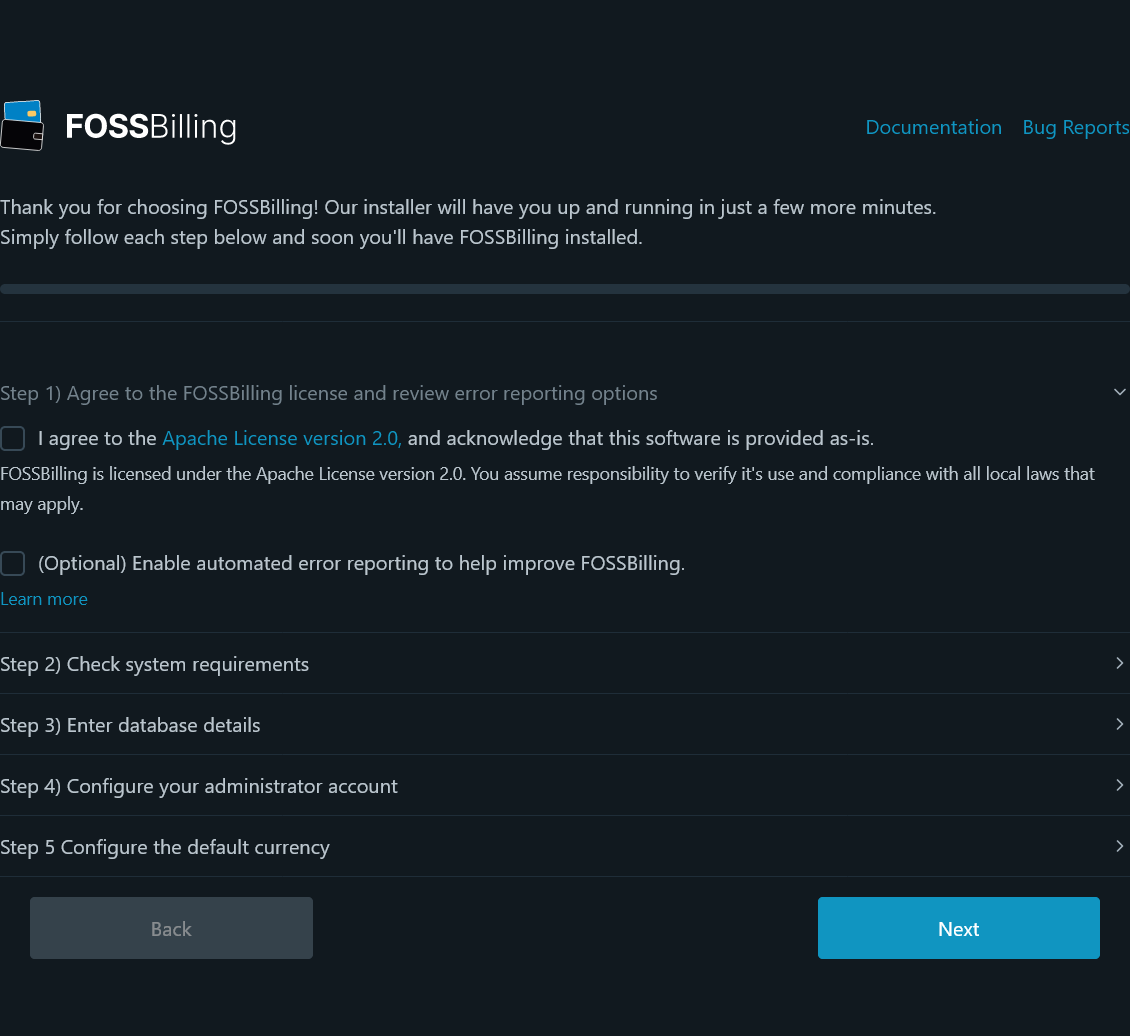
Complete the setup wizard: Follow the on-screen steps to accept the license, enter your database credentials, and create your administrator account.
Configure the default currency: The price format must include
{{price}}as a placeholder. Place your currency symbol before or after it, for example{{price}} USDor$ {{price}}.Install: Click install and wait for the success page to appear.
Post-installation Steps
Section titled “Post-installation Steps”Once the installer finishes, configure the cron job before you begin using the system in earnest.
Configuring the Cronjob
Section titled “Configuring the Cronjob”FOSSBilling relies on cron to handle renewals, expired orders, email delivery, background checks, and other scheduled work. It needs to be configured correctly, run consistently, and execute often enough to keep the platform healthy.
We recommend running cron every five minutes. If more than 15 minutes pass without a run, FOSSBilling will show a warning in the admin panel. Treat that warning as urgent. 
Option 1: Local Cron Job
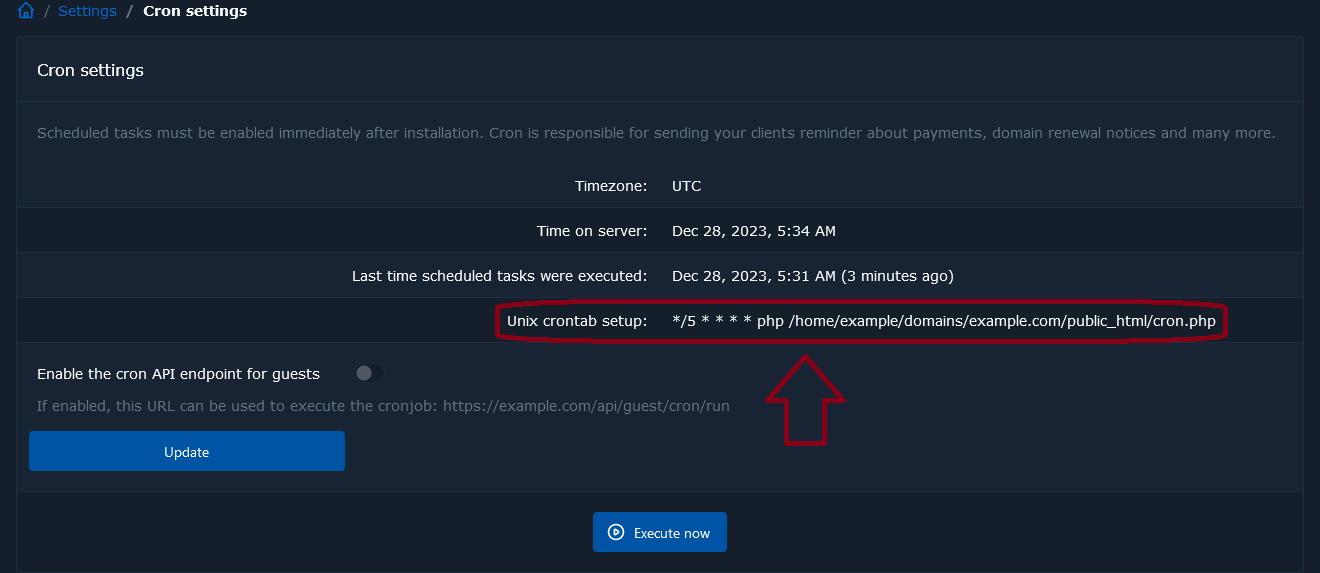
Section titled “Option 1: Local Cron Job”FOSSBilling shows the correct cron command on the installation-complete screen and again in the admin panel. If you need to find it later, go to Settings -> Scheduled Tasks (/admin/extension/settings/cron).
Option 2: Remote Cron Service
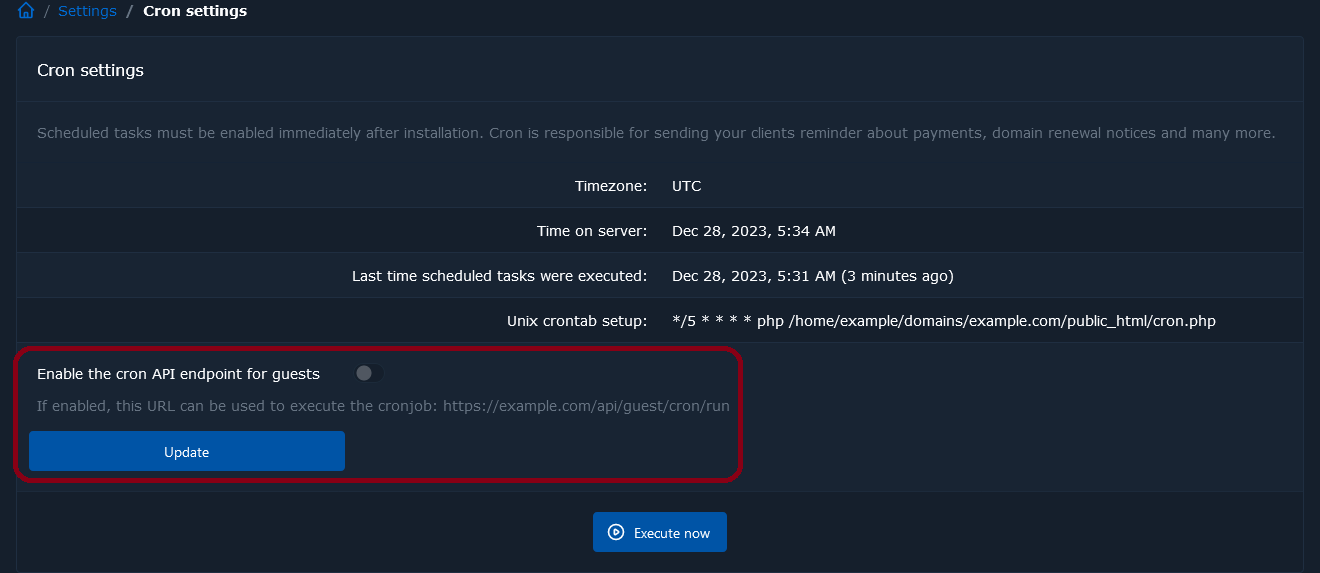
Section titled “Option 2: Remote Cron Service”If you cannot run cron locally, you can use a remote service to call a URL instead. First, go to Settings -> Scheduled Tasks (/admin/extension/settings/cron), enable the cron API endpoint, and click Update.
After that, you can give the displayed URL to an external cron service so it can trigger scheduled tasks for you.